How to transcribe a meeting with speaker names in Claude
· 5 min read · Transcription, Meetings, Speaker labels
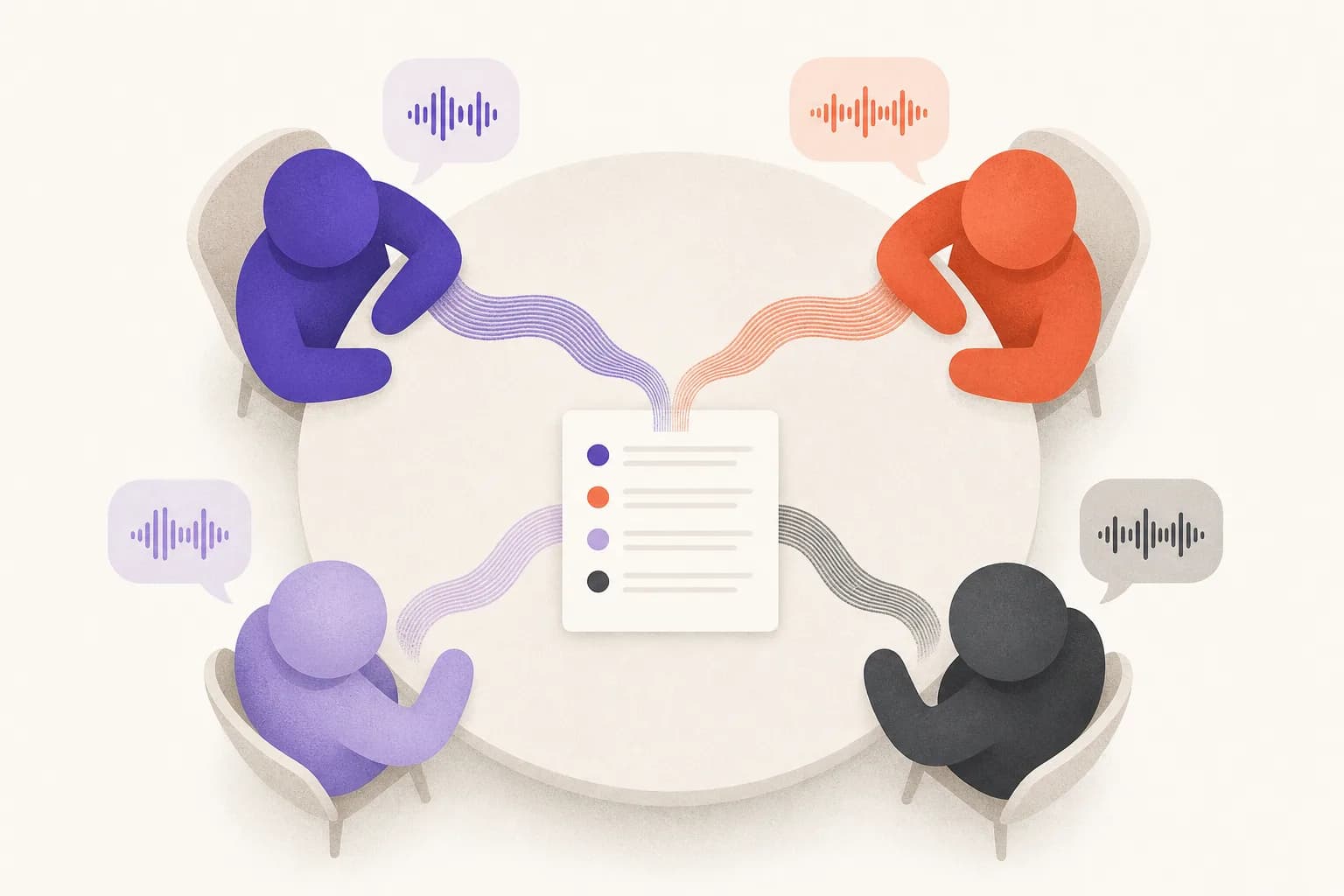
A transcript that just runs on as one block of text is hard to use. What you usually want after a meeting is to know who agreed to what, who raised the concern, and who owns the follow-up. That needs speaker labels, and Claude can't listen to audio by itself. With the Scribe & Imagine connector it can: you give Claude a link to the recording, and a few minutes later you're asking it questions about what was said.
1. Connect Scribe & Imagine to Claude (once)
In Claude, open Settings → Connectors → Add custom connector and paste the connector URL from the home page. Press Connect, sign in with Google, and choose how to pay: your own OpenAI key (free — OpenAI bills you) or prepaid credit. The setup guide has the same steps for Claude Desktop, mobile and Claude Code.
2. Get the recording somewhere Claude can reach it
Any of these works:
- A Google Drive, Dropbox or OneDrive share link set to “anyone with the link”.
- A direct download link (a Zoom cloud recording download, a file on your own site).
- Or skip links entirely and drop the file on the upload page. It shows up in Claude's list of transcripts afterwards.
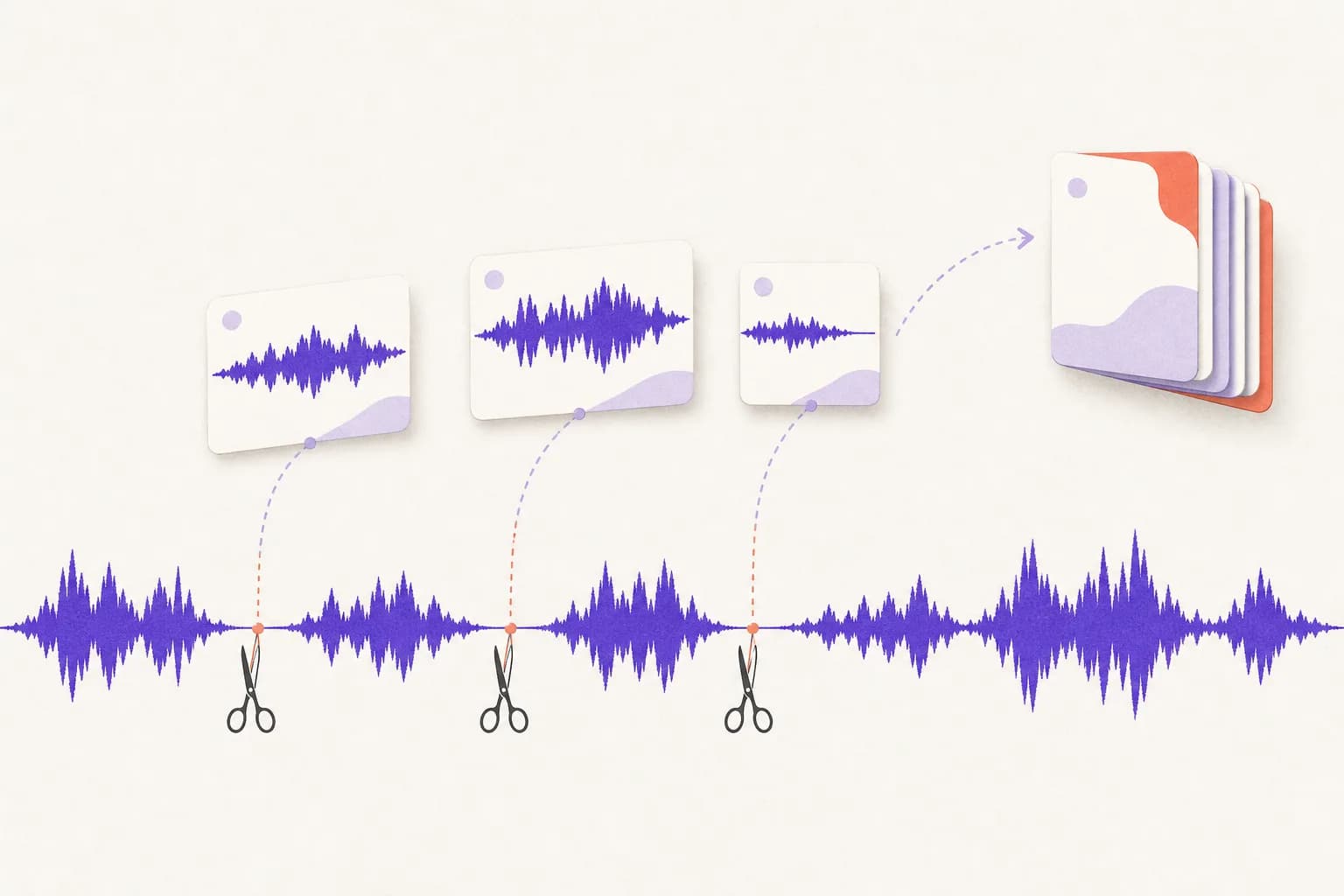
Audio or video both work — MP3, M4A, WAV, MP4, MOV, WebM and most other formats, up to 4 hours and 450 MB. Video is stripped to its soundtrack first, so a large screen recording is fine.
3. Ask for speakers, and give context
The single biggest improvement in accuracy comes from telling Claude what the recording is. Something like:
Transcribe this with speaker names: <link>. It's our weekly product sync — Dana (PM), Luis (engineering) and Priya (design). We talk about the Atlas launch, Figma, and the Q1 roadmap.
Claude passes the description as context, the names as participants and the product words as keywords, so “Atlas” doesn't come back as “at last” and Priya's name is spelled right. It also turns on speaker labels.
4. Rename the speakers
The speech model can tell voices apart, but it can't know their names, so the first transcript says Speaker A, Speaker B and so on. The labels stay consistent through the whole recording — even a three-hour one that is transcribed in pieces, because short samples of each voice from the first part are sent along with every later part. Once it's obvious who is who (“Speaker B is Luis”), just say so, and Claude renames them throughout the saved transcript.
5. Ask for what you actually needed
Now the transcript is in the conversation, and the useful part starts. Good follow-ups:
- “Summarise this in five bullets, then list every decision and who made it.”
- “Make a table of action items with owner and due date.”
- “What did Priya say about the onboarding flow? Quote her.”
- “Draft the follow-up email to the team.”
What it costs
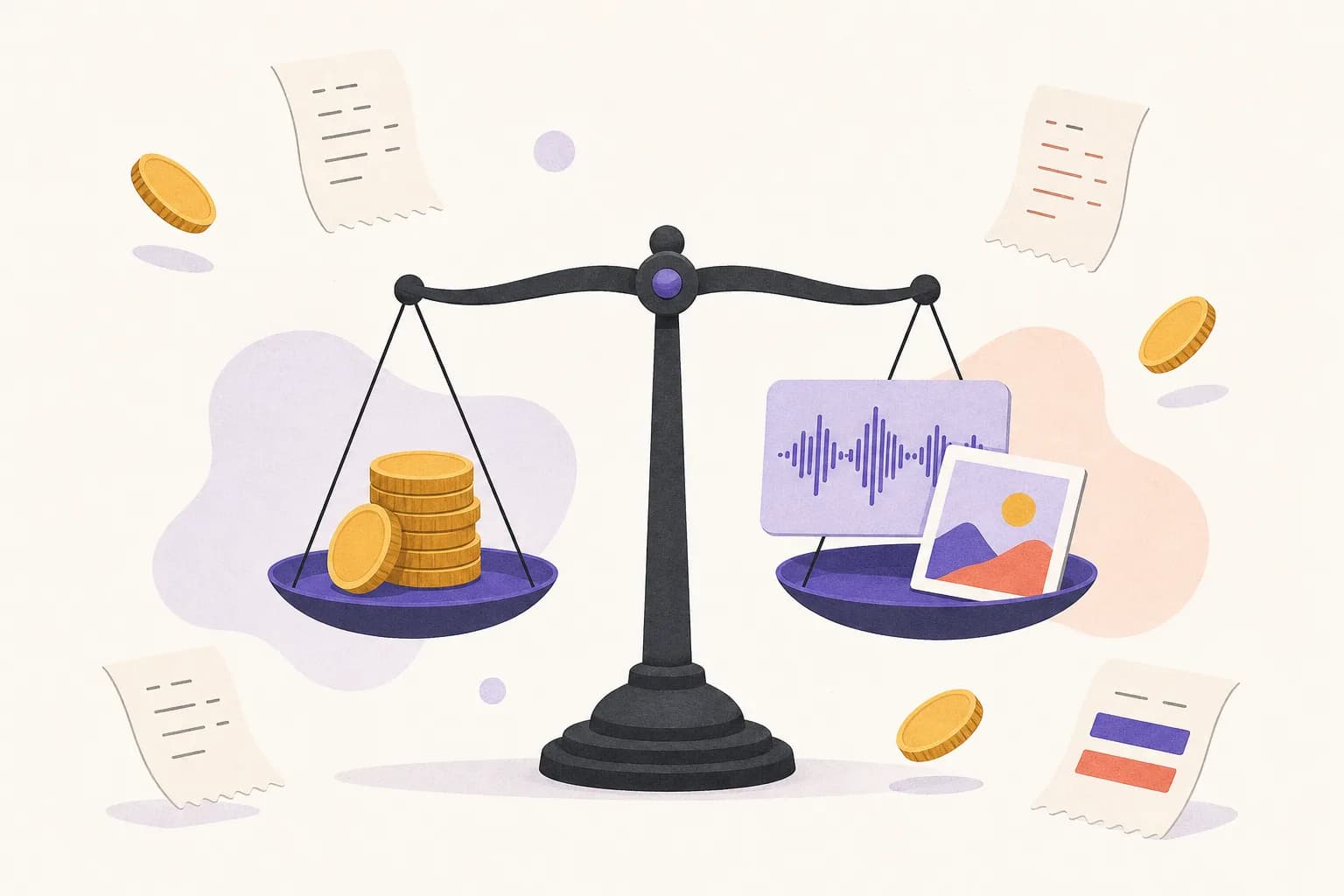
Speaker-labelled transcription costs about $0.36 per hour of audio at OpenAI's list price. With your own OpenAI key that's all you pay; with prepaid credit it's $0.43 (OpenAI's price plus our 20% service fee). The full breakdown is on the pricing page, and every result tells you exactly what it cost.
Privacy
Your recording is deleted as soon as it has been transcribed. The transcript is kept in your account so Claude can read it again later, until you delete it. Details are in the privacy policy.